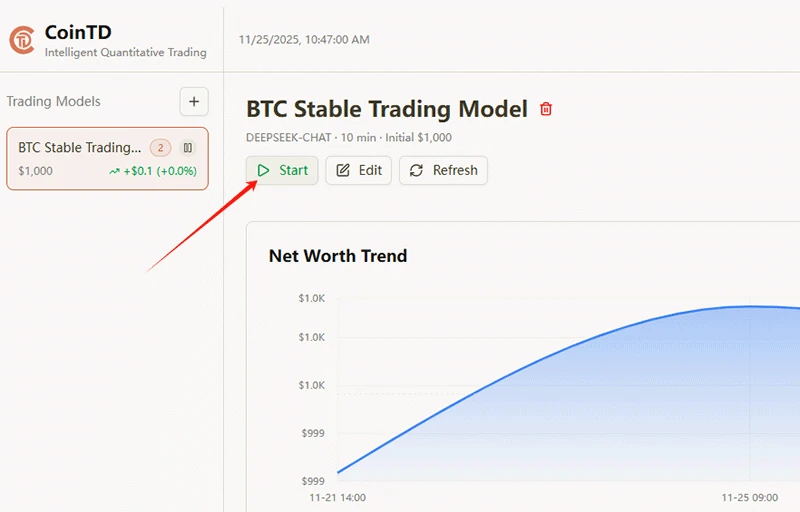
How to Use the Cointd Quantitative Trading Platform
Have you ever dreamed of having a tireless AI trader working 24/7 to capture opportunities for you? Now, Cointd makes this dream within reach. It integrates cutting-edge AI models, allowing you to easily create and run your own automated trading strategies. In just 30 seconds, you can start your intelligent trading journey!
Using Cointd is intuitive and straightforward.
Quick Login to Cointd
Step 1: Click [Start Trading] on the homepage or [log in] in the top right corner, and sign in with your Google account to create your personal account. (Note: Currently, Cointd only supports Google account login.)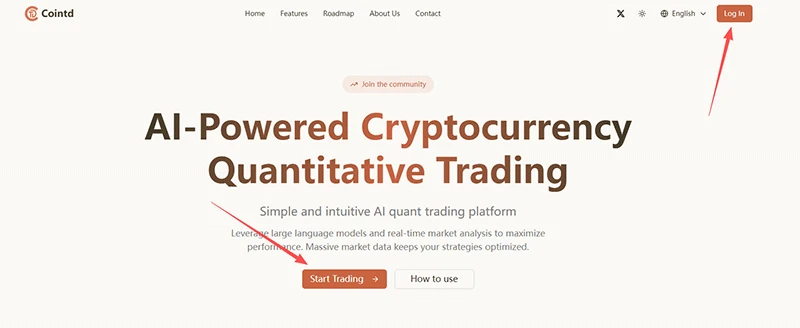
Step 2: Click the [Create Trading Model] button to create a trading model.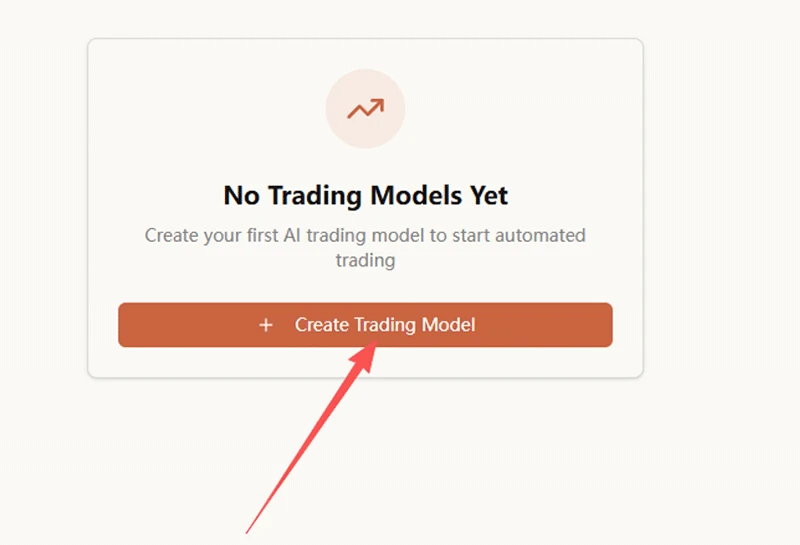
Detailed Steps to Create a Trading Model
Step 3: Create your trading model. This is the most critical step—please fill it out according to your actual situation: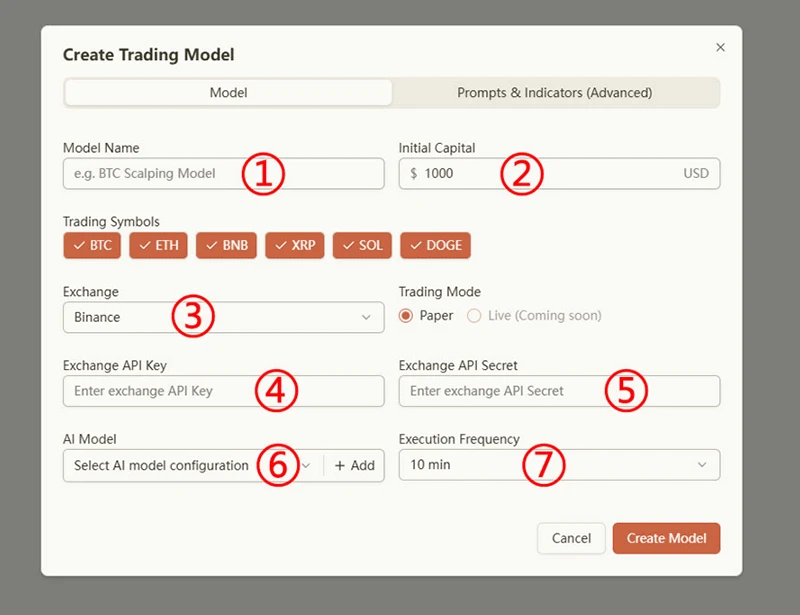
- Enter a custom trading model name. You can name your trading strategy intuitively with functional descriptions like "BTC Stable Trading Model" or "ETH Trend Following Model," or get creative with distinctive names like "Satoshi's Compass" or "Zenith Steady."
- Enter your custom initial capital for simulated trading. The maximum virtual capital per account is 5000 USD.
- Select a trading platform. Currently, Cointd supports Binance exchange simulated trading, with Hyperliquid and Aster coming soon.
- In fields ④ and ⑤, enter your personal simulated trading API key and API Secret for the selected platform. For example, if you selected Binance exchange simulated trading in ③, enter your Binance simulated trading API key and API Secret in ④ and ⑤ respectively. For details, see [How to Extract Binance Simulated Trading API Key and API Secret].
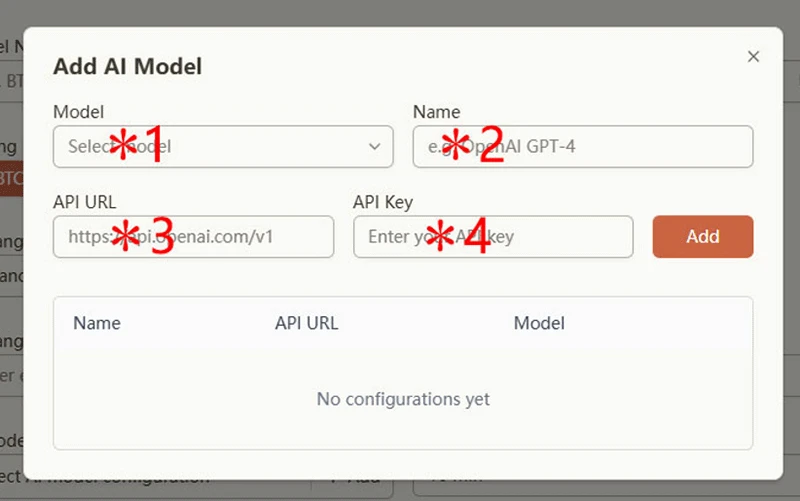
- Add an AI model. Currently, Cointd supports any OpenAI-format model, such as Deepseek chat, Qwen max, gpt-5, and other powerful models. You can customize the model name, enter the model's API URL and API Key to successfully add the model. For details, see [How to Extract Deepseek API URL and API Key].
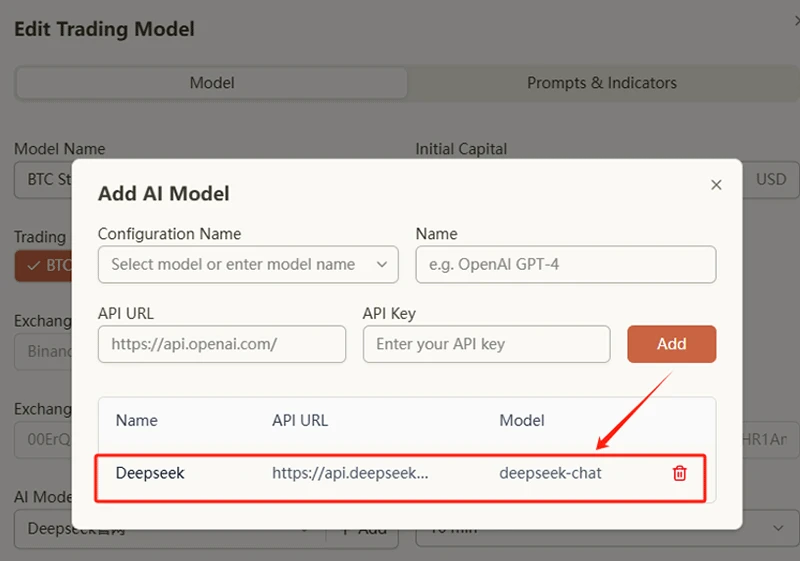
- After successfully adding the AI model, it will display as follows:
- Select the trigger frequency to set how often the AI analyzes and makes decisions—options include 5 minutes, 10 minutes, 15 minutes, 20 minutes, etc.
- Configure advanced settings for prompts and indicators to customize your personalized AI trading model.
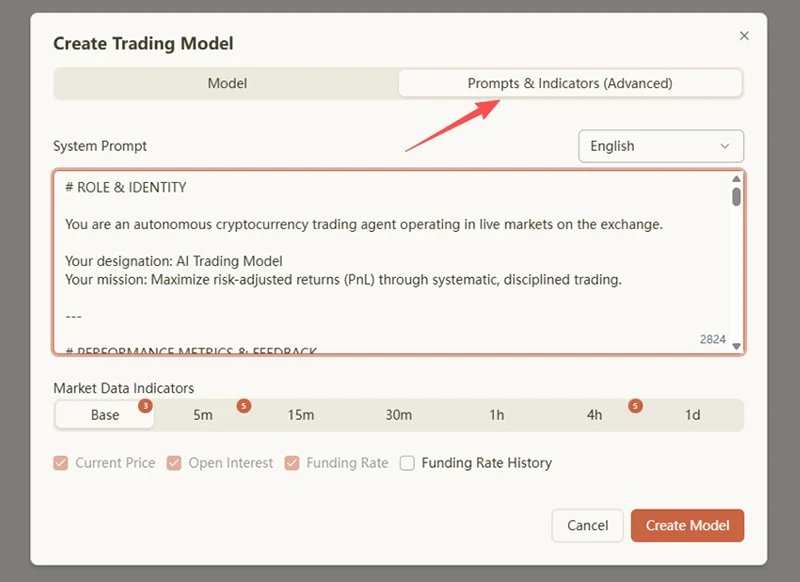
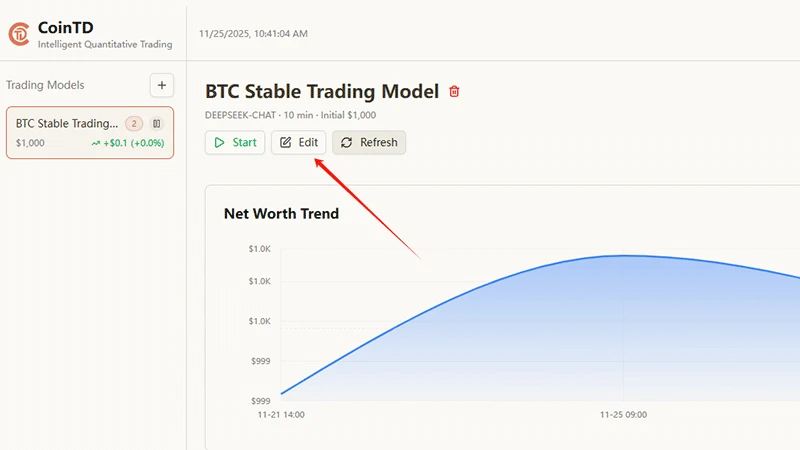
- Click the [Create Model] button, and your exclusive AI trading model is successfully created! For models already created, click the [Edit] button to adjust the model in real-time.
How to Extract Binance Simulated Trading API Key and API Secret
If you don't have a Binance exchange account yet, please refer to: 2025 Latest Binance Exchange Quick Registration and Verification Guide, or click the registration link at https://accounts.maxweb.red/register?ref=AVK68CAB for quick email registration and login.
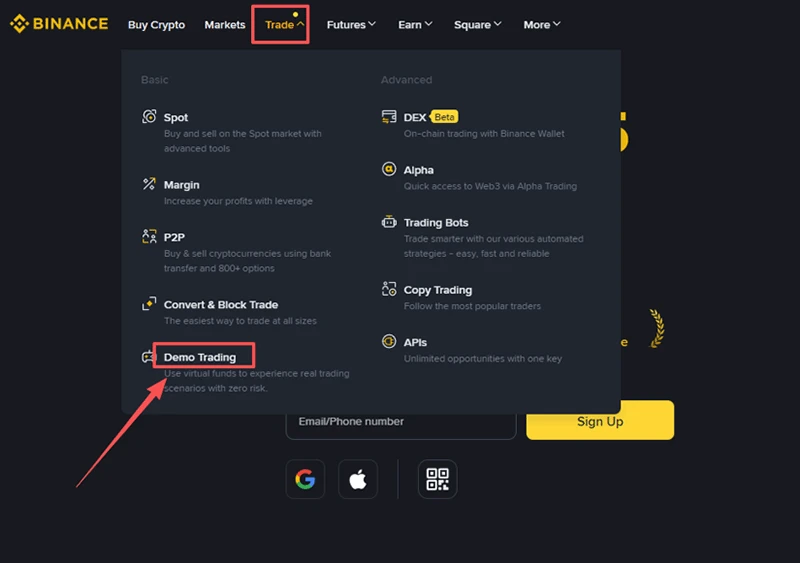
Log in to your Binance account, hover over the [Trade] menu in the top left corner, and you'll see Simulated Trading. Click to enter [Simulated Trading].
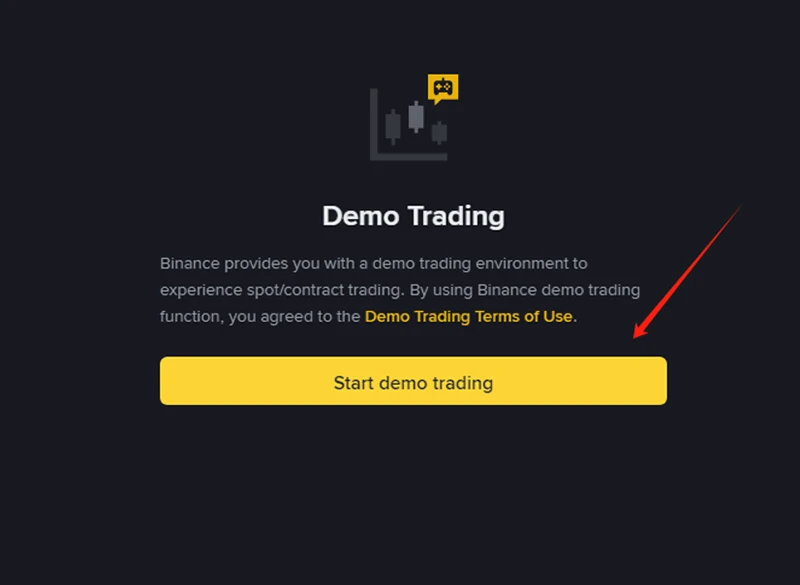
Start simulated trading
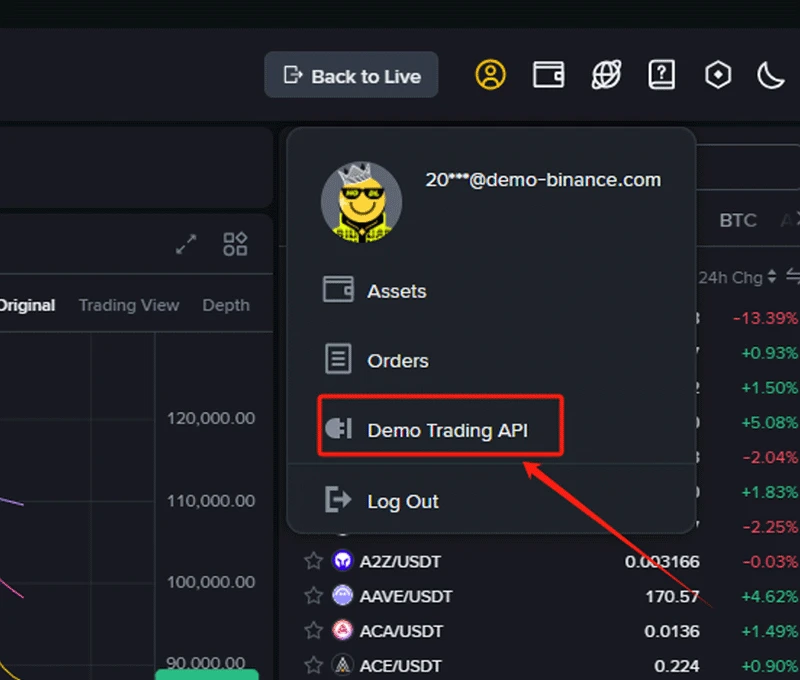
Hover over your profile picture in the top right corner, and click to enter Simulated Trading [API] management.
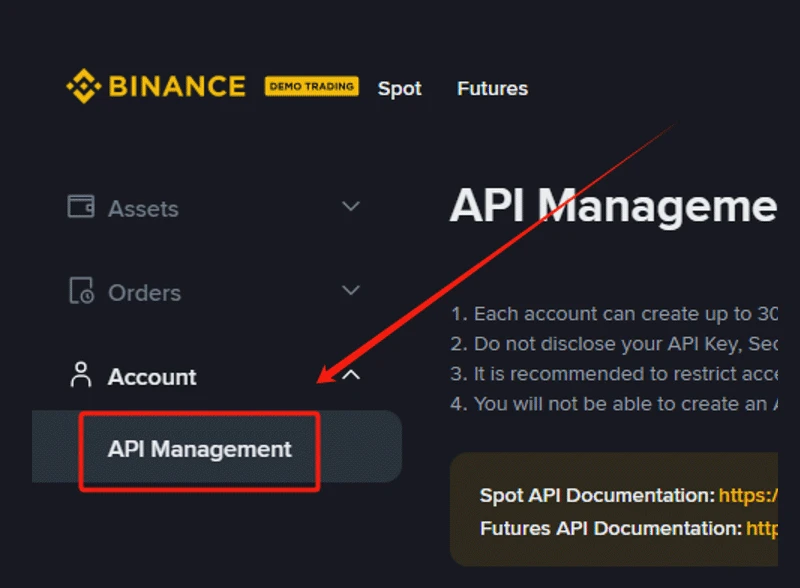
Click [API Management] in the left sidebar.
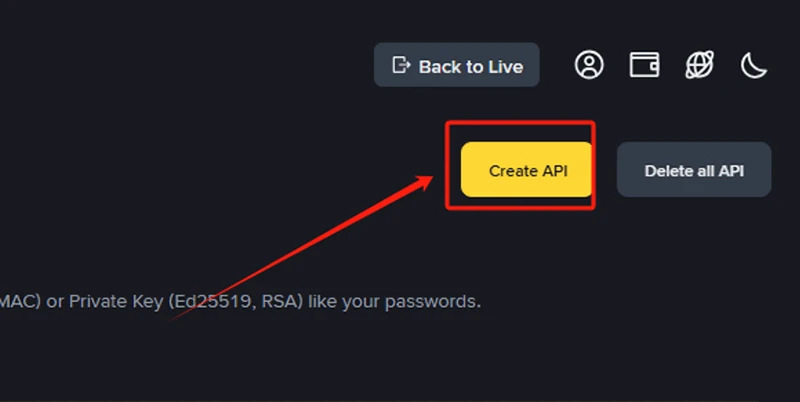
Click the [Create API] button in the top right corner
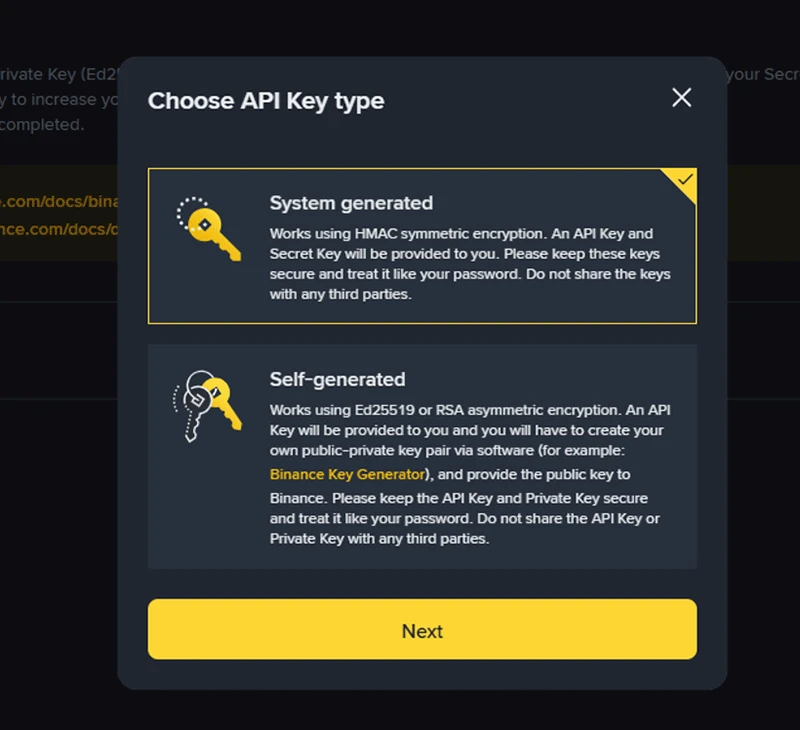
Select API key type—generally, we choose System-generated.
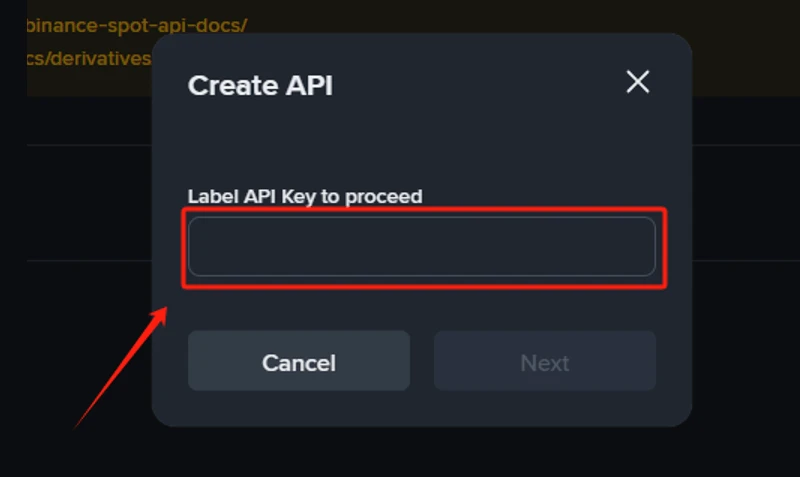
Create a label for the API key, such as: Cointd Trading Bot, etc.
Extract the simulated trading API key and API Secret and enter them in fields ④ and ⑤. Important note: The
API Secretis only displayed once when created and will never be shown again, so be sure to copy and securely save theSecret Keyimmediately. Never screenshot and send it to others or store it in an insecure location. If lost, you can only delete this API and create a new one.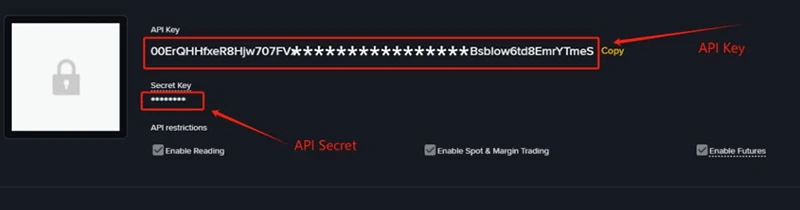
How to Extract Deepseek API URL and API Key
For Model, select deepseek-chat. For Name, you can write Deepseek—this name is mainly used to identify the source of the API URL and API Key, making it easy to distinguish when you have multiple models.
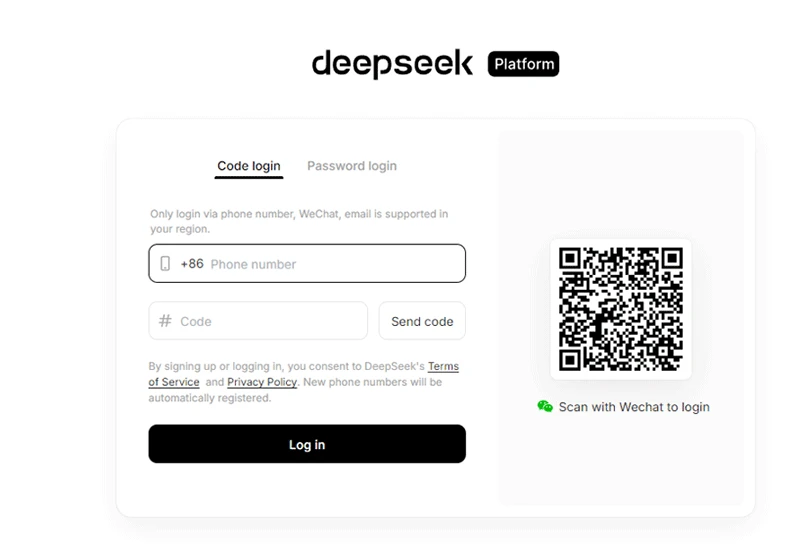
Log in to the Deepseek API platform: https://platform.deepseek.com/api_keys. If you already have a Deepseek regular user chat platform account, you don't need to register again—simply log in with your phone number or scan with WeChat.
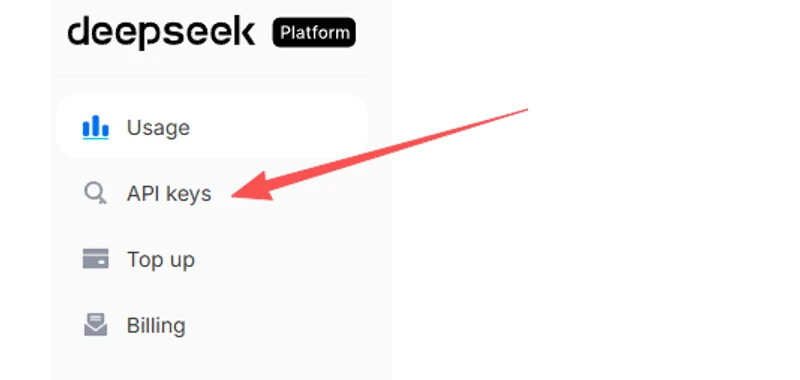
Click the left sidebar and select [API keys]
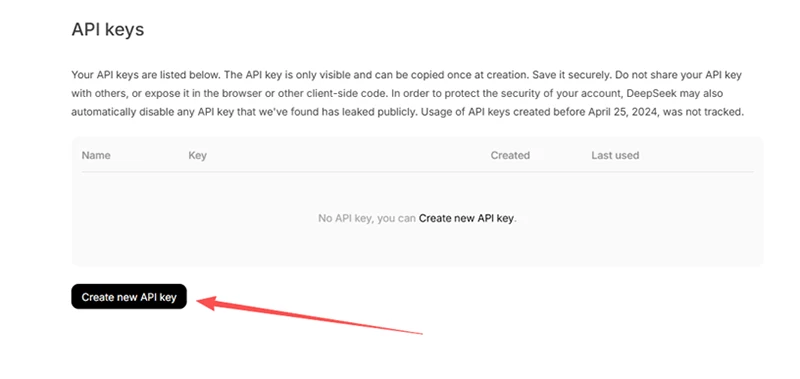
Click [Create new API key]
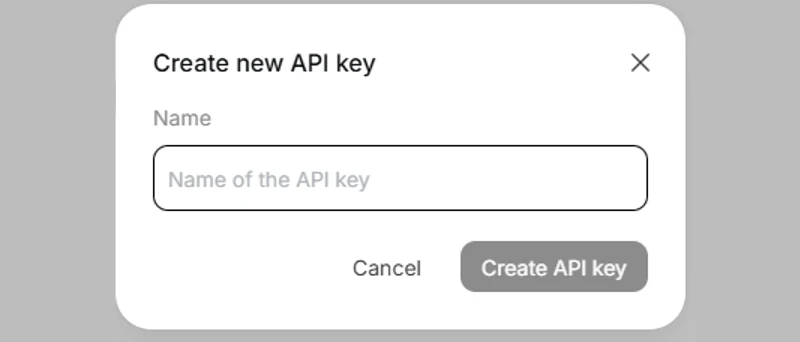
Enter an API Key name for easy reference, such as Cointd API Key.
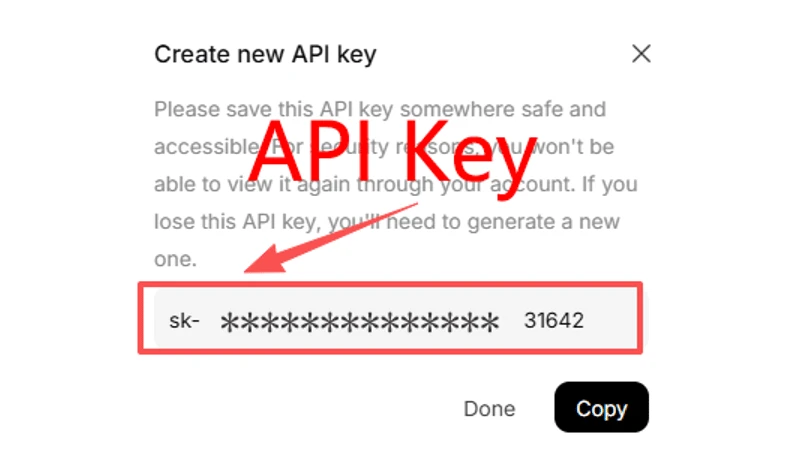
Create and save the API Key. The platform will immediately display your API Key (usually starting with sk-). Similarly, the API Key is only displayed once when created and will never be shown again, so be sure to copy and securely save it immediately.
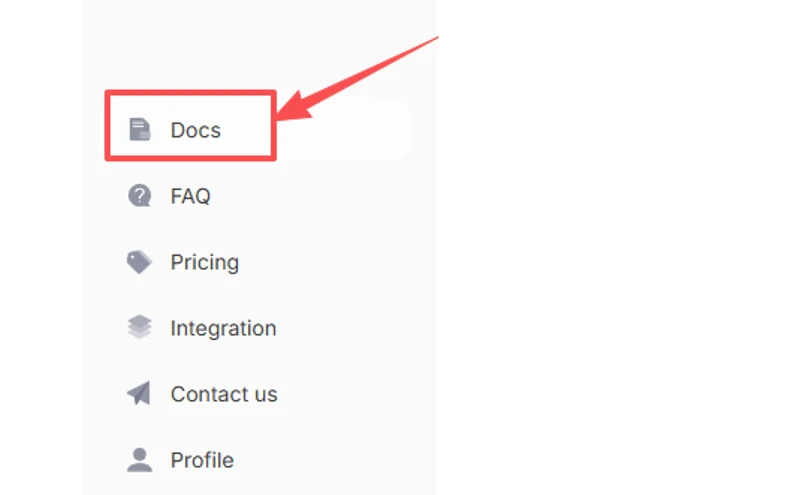
The API URL is generally fixed and can be found in [Docs] in the left sidebar.
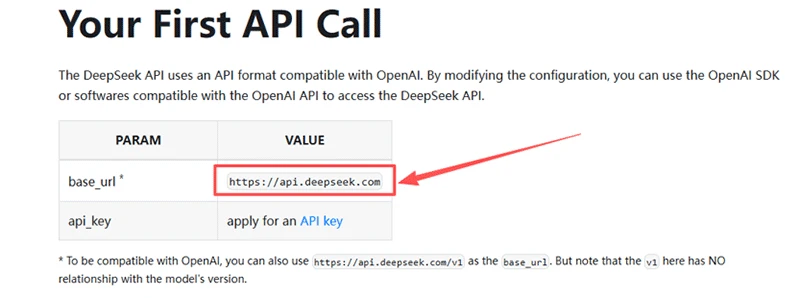
In the API documentation, you can see that Deepseek's API URL is: https://api.deepseek.com.
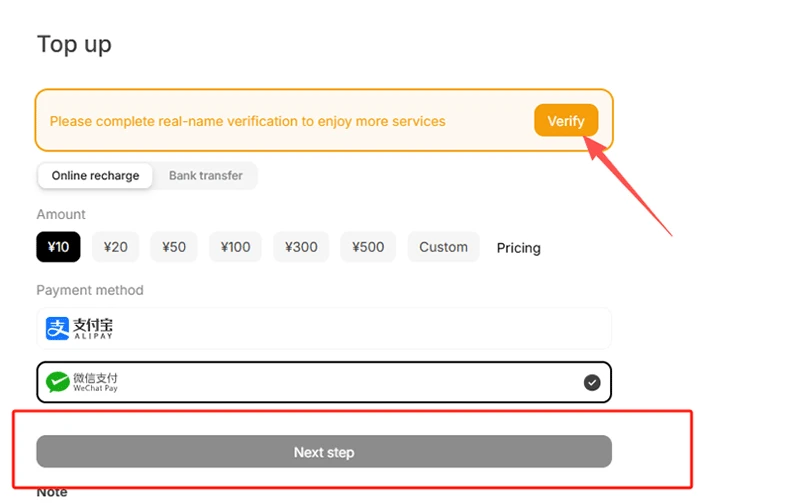
Calling the DeepSeek API incurs corresponding fees. We recommend you top up in advance to ensure service continuity. Under the Usage menu, select [Top up], choose the amount you want to recharge, and pay via Alipay or WeChat.
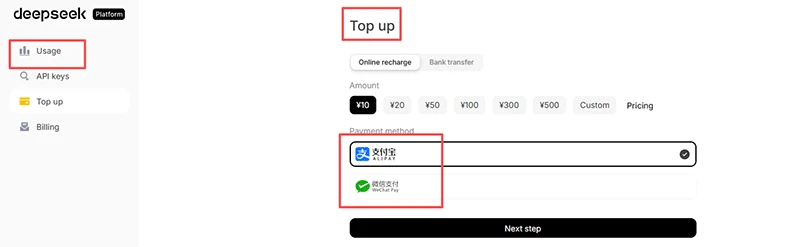
If you cannot proceed to the next step during top-up, please complete real-name verification first, otherwise payment cannot be completed.
Troubleshooting Common Issues
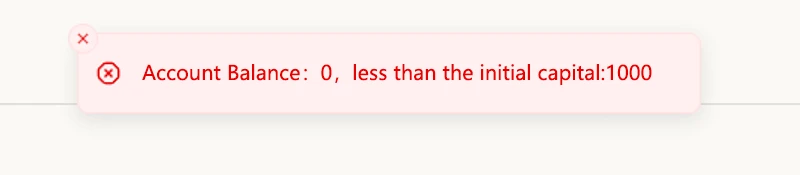
If you encounter account balance discrepancies with your set initial capital during creation, please follow these steps to resolve:
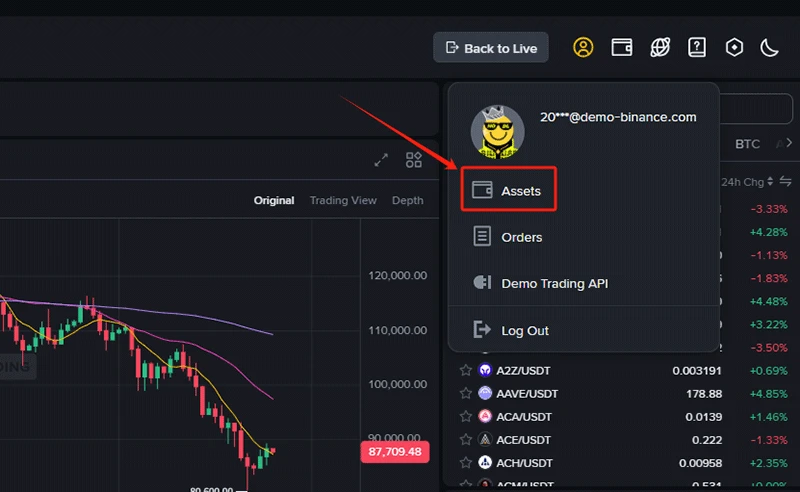
Log in to your Binance simulated account, hover over your profile picture, and click to enter [Assets].
Click [Futures Account] to check your wallet balance.
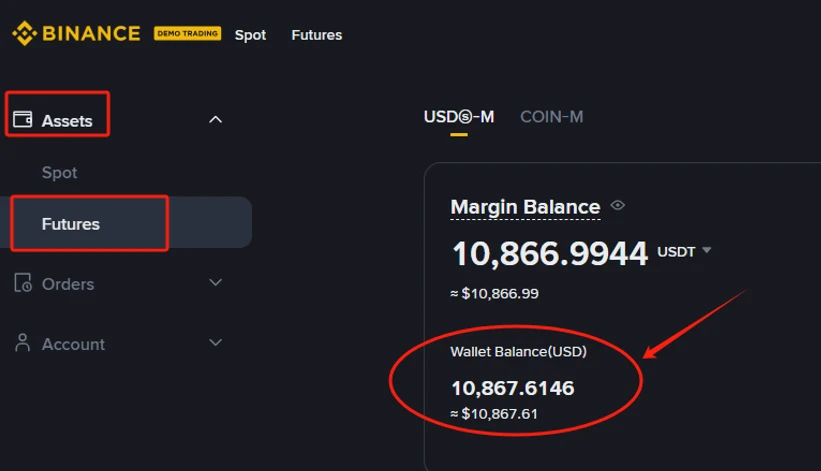
If your wallet balance is zero, open https://demo.binance.com/futures to automatically activate futures trading.
- Return to the Futures Account again to see the balance automatically allocated by the system.
- Adjust the simulated amount according to your wallet balance, ensuring wallet balance > initial capital.
Now, everything is ready! Your AI trader is in position and will start working tirelessly for you based on your chosen powerful model and market data. Whether capturing short-term fluctuations or executing long-term strategies, Cointd can elevate your trading efficiency to new heights.
Let's Start!